

7 Innovative Parenting Tools Powered By Technology
Families can find new ways to simplify daily routines by turning to helpful technology designed for home life. Modern tools adjust to changing family schedules and...
Aug 12, 2026


You’re trying to record a quick video, and your phone warns that storage is full. The obvious fix—deleting pictures—can feel like the only option, but photos are often not the biggest space users can reclaim. App caches, downloaded shows, old files and unused apps can quietly take up gigabytes, and clearing them usually leaves your camera roll untouched.
The trick is to remove replaceable copies, not personal files. Check what is using space first, then use the matching cleanup option; avoid broad “clear data” or “delete all” buttons unless you know exactly what they affect.
A cache holds temporary files that help apps and websites load faster. Clearing it can free space, though the app may take a little longer to load the next time. Follow the specific route for your phone or app:
A cache is different from an app’s saved files. If an app offers separate buttons for “cache” and “downloads,” choose the cache option when you want to keep anything you deliberately saved.
Files in Downloads often remain after you have opened or shared them. Browse the Downloads folder in the Files app on an iPhone or the Files app on Android, then remove only items you recognize and can get again.
Check these locations before deleting anything:
Streaming and navigation apps keep offline copies on the phone, often without those files appearing in the main storage folders. Removing a download frees its local space; you can usually download it again when you have a connection.
Open each app’s Downloads or Offline section and review what is stored locally:
Games, editing tools and travel apps can be large, even when you are not using them. On an iPhone, Settings > General > iPhone Storage may offer Offload App, which removes the app itself while keeping its documents and data on the phone.
On Android, uninstalling an app generally removes its local data too, so check first for drafts, recordings or files that exist only inside it. For either phone, remove an app only after confirming that its account is synced or its important work is saved somewhere else; an app’s private files may not be in your photo library.
Group chats can hold years of files, but their storage tools may combine photos, videos and documents in one list. Open a conversation’s storage or media section, sort by size if the option is available, and select only items you can replace, such as a document already saved elsewhere.
Skip photos and videos if your goal is to keep every picture on the phone. In WhatsApp, for example, Manage Storage lets you review large items, but inspect each selection rather than using a “select all” control. A file may be important even if it is old, so open it or confirm it exists elsewhere before removing it from a conversation.
If photos are the largest category, a cloud-storage setting may reduce the space they take on the device without removing them from your library. On an iPhone using iCloud Photos, go to Settings > your name > iCloud > Photos and select Optimize iPhone Storage. The phone can keep smaller local versions while full-resolution originals remain in iCloud.
This requires enough iCloud storage and an internet connection to retrieve originals; it does not create extra space in your iCloud account. Do not delete pictures in the Photos app to test the setting: when photo syncing is on, deleting a picture can remove it from the synced library on other devices too. Check that syncing is complete before changing photo settings, and use a separate backup if you need another copy.
Start with caches and replaceable downloads, then check offline media and unused apps. You can keep your photos intact while clearing space, as long as you review each deletion and avoid removing items from a synced photo library.
Families can find new ways to simplify daily routines by turning to helpful technology designed for home life. Modern tools adjust to changing family schedules and...
Aug 12, 2026

Learning to handle money early on gives you a real sense of control and self-reliance. Teens who get comfortable with making choices about saving, spending, and watching...
Aug 30, 2026

Building genuine connections online opens new opportunities for both your career and personal development. A friendly introduction, a sincere message, or a carefully...
Oct 24, 2026

Writing your first personal blog post feels a bit like sharing your story with a room full of new friends. Concerns about confusing settings or unexpected website...
Sep 24, 2026

Choosing a watch that supports your daily well-being can make a meaningful difference in your routine. A wellness-oriented smartwatch keeps track of your heart rate...
Sep 21, 2026

Balancing soccer practice, grocery shopping, and work presentations can quickly fill up any schedule and leave little time to relax. Choosing the right apps can help...
Oct 28, 2026

Transforming a plain wall into a warm gallery space or fixing a loose chair leg can feel simple and satisfying with the right tools on hand. When you collect a set of...
Sep 16, 2026

Picking quality tools helps you complete home projects with greater ease, speed, and satisfaction. Selecting equipment that matches your needs ensures each tool feels...
Aug 05, 2026
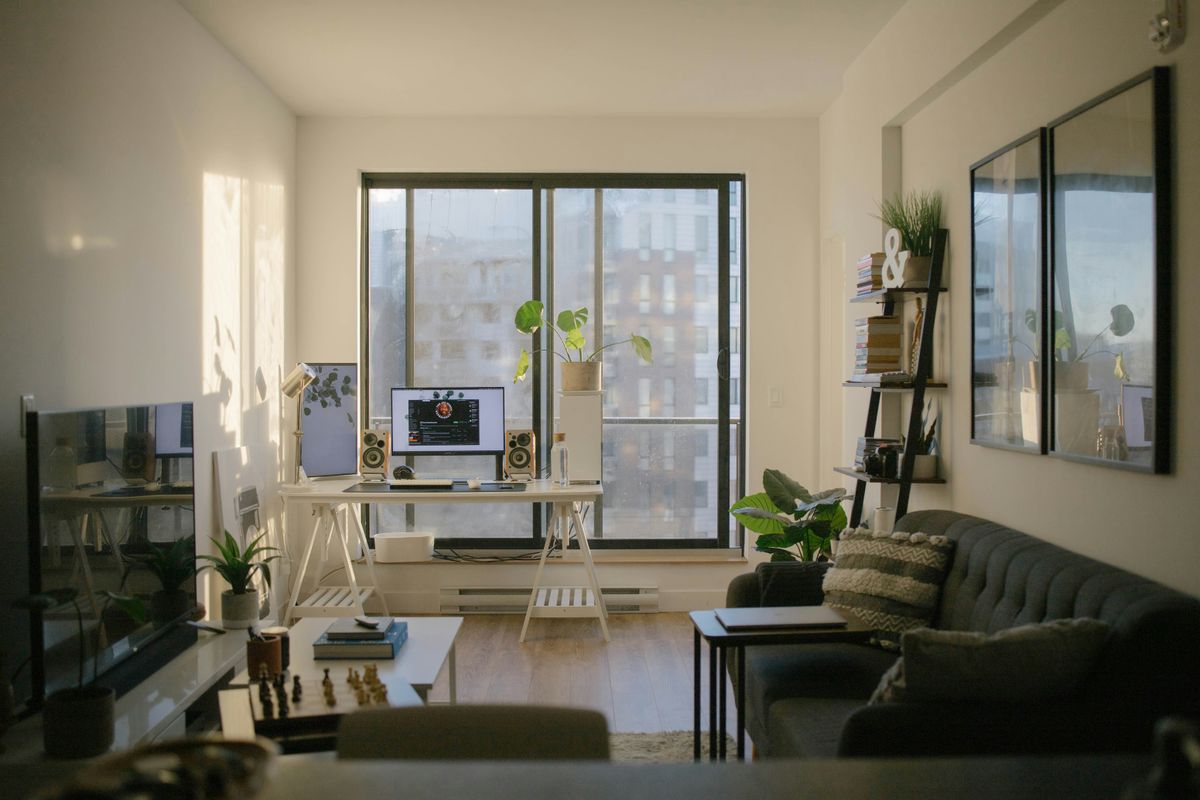
Designing a home office that supports both comfort and productivity can feel overwhelming, yet a few thoughtful changes will help you build a space where you feel...
Aug 09, 2026

Walking through your front door can feel so much better when you’re greeted by a tidy corner that brings a sense of calm. Instead of juggling tangled keys and piles of...
Sep 12, 2026

Living with pets brings plenty of joy, but it also introduces a steady stream of toys, leashes, and food bags that quickly fill up every corner of your home. You might...
Oct 19, 2026

Balancing the joys of pet ownership with the realities of apartment living calls for a bit of ingenuity and careful preparation. Even when your living area feels small,...
Aug 02, 2026

Carving out a workout area in an unused corner brings a sense of accomplishment and motivation. A small, dedicated space can encourage you to keep up with your fitness...
Oct 11, 2026

Clutter often collects in living rooms, with toys scattered across the floor, magazines piling up on the coffee table, and blankets left draped over the couch....
Sep 04, 2026